Share your feedback via email, using Mastodon or
Stellar Neovim config optimization
A fast car isn’t built by continuously bolting on new parts. Every so often, it dives into the pit lane, where an entire team tears through a carefully orchestrated routine: worn tires come off, fresh ones go on, adjustments are made, and every movement is designed to send the car back onto the track faster than before. That’s exactly how this rebuild of my Neovim configuration felt.
Neovim users have noticed that version 0.12 came with major changes like native LSP configuration and enhancements, improved defaults and diagnostics, native vim.pack plugin manager, experimental UI overhaul (ui2), and broad performance improvements. That was the excuse I needed to sanitize my configuration to eventually come up with this humble blogpost title.
My Current Configuration Status
Over the years, my setup had grown organically over the years. Because everything was working just fine, I gradually stopped paying attention to code cleanliness and overall performance, focusing instead on piling on the new features I needed. Every new plugin solved a problem, every tweak made sense at the time, yet together they formed a machine that wasn’t as elegant — or as fast — as it could be. Startup time had slowly increased, configuration files had become harder to navigate, and some pieces interacted more by coincidence than by design.
Instead of squeezing out another few milliseconds with isolated optimizations, I decided to pull into the pit lane.
Time For A Deep Rebuild
I took the configuration apart, component by component. Some pieces stayed because they were doing their job perfectly. Others were replaced, simplified, or removed entirely. Like a well-executed pit stop, the goal wasn’t change for its own sake. It was to return to the track leaner, cleaner, and ready to perform at its best. The main goal wasn’t speed. While the boot time improved dramatically, the difference is hardly noticeable in day-to-day use. The real intent was to implement some of the new features offered with the 0.12 version, clean the configuration, optimize the way plugins interact together.
Below, I’ll walk through the architectural decisions behind the rebuild, and why sometimes the fastest way forward is to stop, rebuild, and enjoy putting the machine back together. As always, I won’t cover my entire config, but focus on the “lesser-known” bits.
Neovim 0.12
Adopting Ui2
UI2 is a redesign of the core messages and commandline UI, which will replace the legacy message grid in the TUI. It rethinks how the cmdline, messages, and pager work.
To activate it in Neovim, I’ve copied the default configuration:
require("vim._core.ui2").enable({
	enable = true, -- Whether to enable or disable the UI.
	msg = { -- Options related to the message module.
		---@type 'cmd'|'msg' Default message target, either in the
		---cmdline or in a separate ephemeral message window.
		---@type string|table<string, 'cmd'|'msg'|'pager'> Default message target
		---or table mapping |ui-messages| kinds and triggers to a target.
		targets = "cmd",
		cmd = { -- Options related to messages in the cmdline window.
			height = 0.5, -- Maximum height while expanded for messages beyond 'cmdheight'.
		},
		dialog = { -- Options related to dialog window.
			height = 0.5, -- Maximum height.
		},
		msg = { -- Options related to msg window.
			height = 0.5, -- Maximum height.
			timeout = 4000, -- Time a message is visible in the message window.
		},
		pager = { -- Options related to message window.
			height = 1, -- Maximum height.
		},
	},
})
In addition, I’ve placed vim.o.cmdheight = 0 in init.lua to make the cmdline only visible when I need it.
The Nvim-Treesitter Case
While Neovim bundles the treesitter runtime, most people still needs the nvim-treesitter plugin to manage parser installation and configuration. To do so, you need to change the default branch in your plugin manager to main and have tree-sitter-cli installed on your system. Then, call require("nvim-treesitter").setup({}) in your nvim-treesitter configuration file, but remove any options. That should be it, unless you want to take the extra mile.
The old plugin let you use highlighting and indentation by passing options to setup(). Now, this could be done with this FileType autocmd:
vim.api.nvim_create_autocmd("FileType", {
	callback = function()
		pcall(vim.treesitter.start)
		vim.opt.foldexpr = "nvim_treesitter#foldexpr()"
		vim.wo.foldmethod = "expr"
	end,
})
Additionally, ensure_installed is no longer a config option, but you can replicate this behavior with an init callback that doesn’t reinstall everything on every startup:
vim.api.nvim_create_autocmd("FileType", {
  pattern = "*",
  callback = function()
    pcall(vim.treesitter.start)
  end,
})
Lsp
I still use nvim-lspconfig to tweak few LSP options, while keeping the benefits of having the default config automatically retrieved for me. The code below shows how I’ve automated the process to enable all LSP and use blink.cmp instead of nvim-cmp.
local capabilities = require("blink.cmp").get_lsp_capabilities()

vim.api.nvim_create_autocmd("LspAttach", {
	callback = function(args)
		local client = vim.lsp.get_client_by_id(args.data.client_id)

		if client:supports_method() and client:supports_method("textDocument/codeLens") then
			vim.lsp.codelens.enable(true)
		end
	end,
})

local lsps = {
	basedpyright = {
		capabilities = capabilities,
	},

	lua_ls = {
		capabilities = capabilities,

		settings = {
			Lua = {
				filetypes = { "lua" },
				diagnostics = {
					globals = { "vim" },
				},

				workspace = {
					checkThirdParty = false,
				},
			},

			telemetry = {
				enable = false,
			},
		},
	},

    yamlls = {
		capabilities = capabilities,
	},
    -- ... your LSP
}

for name, config in pairs(lsps) do
	vim.lsp.config(name, config)
	vim.lsp.enable(name)
end
Light Aesthetic Touches
Custom Folding Blocks
I didn’t like the default folding blocks appaearnce (left image) so I’ve made my own (right image) with the two code blocks below:
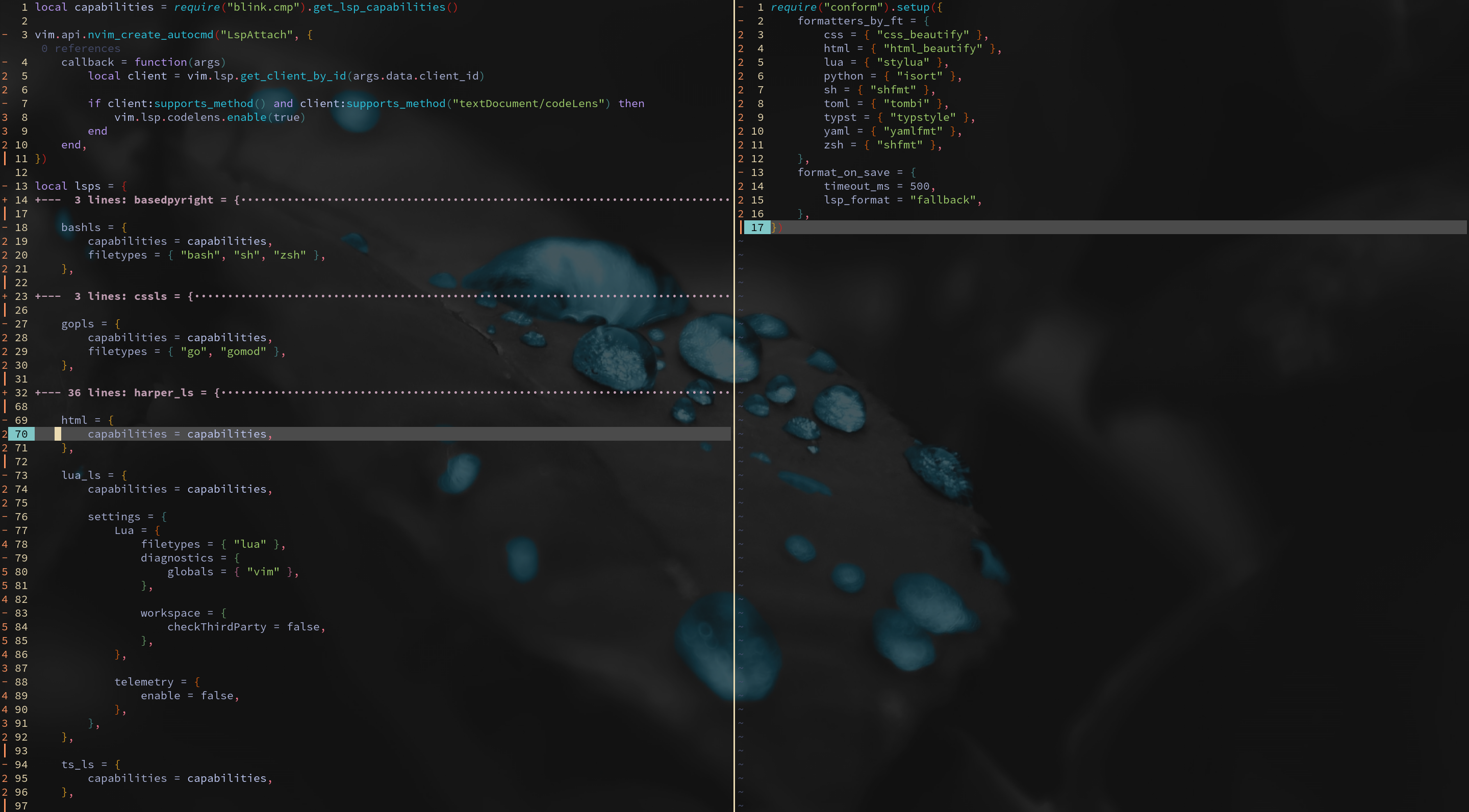
Default Neovim folding text
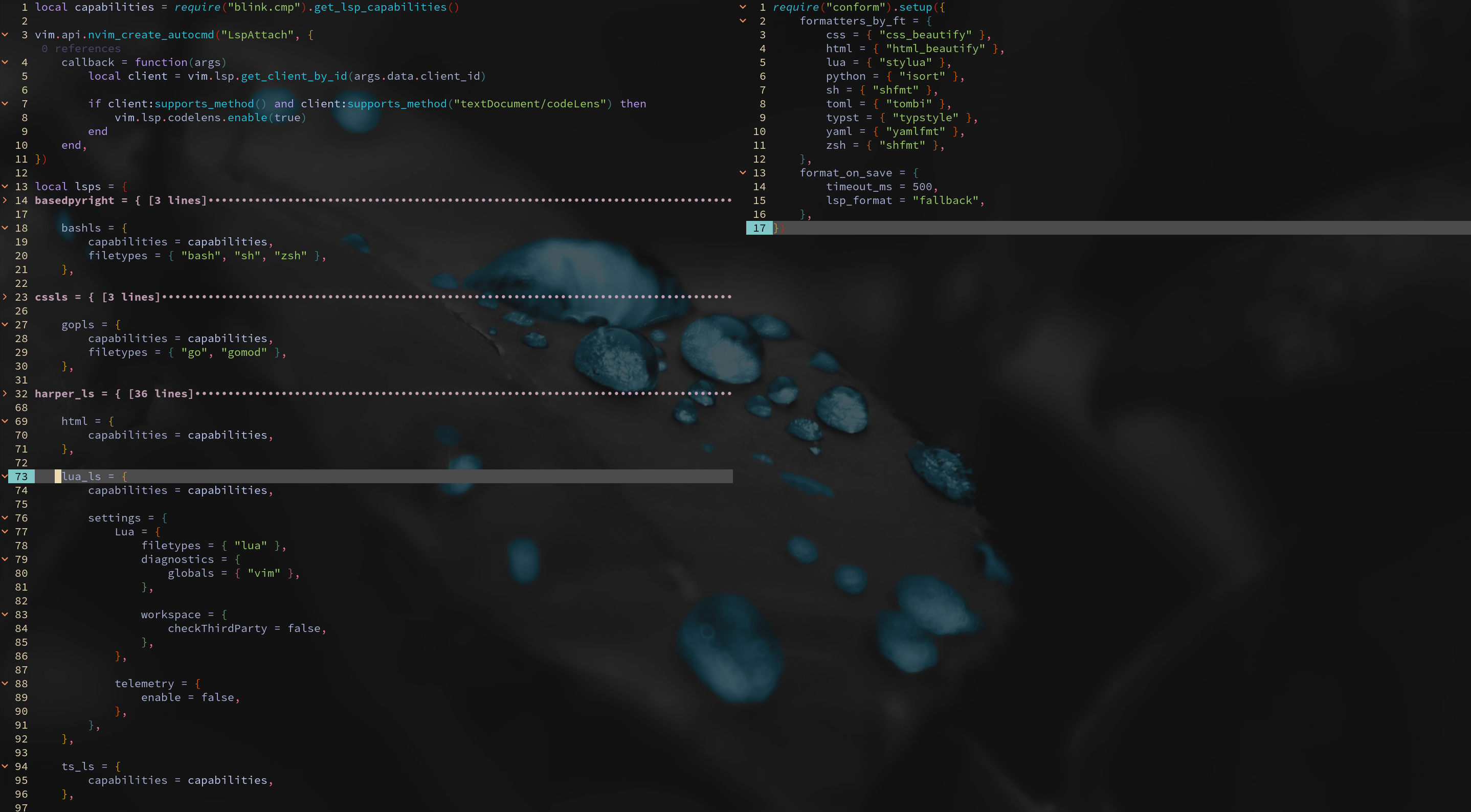
Custom folding text
-- Create your own foldtext
function _G.custom_foldtext()
local first = vim.fn.getline(vim.v.foldstart):gsub("^%s*", "")
local count = tostring(vim.v.foldend - vim.v.foldstart + 1)
local suffix = string.format(" [%s lines]", count)
local width = vim.api.nvim_win_get_width(0)
local fill = math.max(1, width - vim.fn.strdisplaywidth(first) - #suffix)
local dots = string.rep("", fill)
return first .. suffix .. dots
end
local group = vim.api.nvim_create_augroup("CustomFoldtext", {})
vim.api.nvim_create_autocmd({ "BufWinEnter", "WinEnter" }, {
group = group,
callback = function()
vim.opt_local.foldtext = "v:lua.custom_foldtext()"
end,
})-- Create a minimalist foldcolumn that displays only the fold sign and remove the split bars
vim.opt.fillchars = {
vert = " ", -- remove vertical split bar
horiz = " ", -- remove horizontal split bar
eob = " ", -- remove - at the end of the buffer
foldopen = "",
foldclose = "",
foldsep = " ",
foldinner = " ",
}
vim.opt.foldcolumn = "1"
vim.api.nvim_set_hl(0, "WinSeparator", { fg = "none", bg = "none", link = "Normal" }) -- ensure the horizontal split is invisible
vim.api.nvim_set_hl(0, "VertSplit", { fg = "none", bg = "none", link = "Normal" }) -- ensure the vertical split is invisibleStop Auto Comment
When I start a new line after a comment, it will automatically be formatted as a comment as well. This feature turned out to be more boring than useful, so here is how I stopped injecting comment characters on new lines:
vim.api.nvim_create_autocmd("BufEnter", {
	callback = function()
		-- Removes 'r' (enter), 'o' (O/o), and 'c' (auto-wrap) from formatoptions
		vim.opt.formatoptions:remove({ "r", "o", "c" })
	end,
})
I Prefer Functions When Possible
Sometimes you’ll come across a plugin that catches your interest, even though you’re really only after one or two of its features. In some cases, those features can be recreated with a small function of your own, freeing up a spot in your plugin list.
Tabout From Autopairs
Autopairing is one of those features that quickly becomes indispensable, whether you’re writing code or plain text. The only annoyance is having to manually move the cursor outside the closing delimiter once you’re done typing. A simple remap of the Tab key can solve this while preserving its normal behavior in every other situation:
require("blink.cmp").setup({
	keymap = {
		preset = "super-tab",

		["<CR>"] = { "accept", "fallback" },

		["<Tab>"] = {
			-- If completion menu is visible, select the next item
			function(cmp)
				if cmp.is_visible() then
					return cmp.select_next()
				end
			end,

			-- If a native snippet is active, jump forward
			function()
				if vim.snippet.active({ direction = 1 }) then
					vim.snippet.jump(1)
					return true
				end
			end,

			-- Tabout from autopairs logic
			function()
				local col = vim.fn.col(".")
				local line = vim.fn.getline(".")
				local next_char = line:sub(col, col)

				if vim.tbl_contains({ ")", "]", "}", '"', "'", "`" }, next_char) then
					vim.api.nvim_feedkeys(vim.api.nvim_replace_termcodes("<Right>", true, true, true), "n", true)
					return true -- Tell blink we handled this keypress
				end
			end,

			-- If none of the above matched, fallback to normal Tab behavior
			"fallback",
		},
	},
Call these functions from nvim-cmp if you’re not using blink.cmp
File Preview
I like to preview my work as I write, whether it’s Markdown, PDF, or Mermaid diagrams. While there are plugins for each of these, and I use
render-markdown.nvim
for inline Markdown rendering, I prefer external previews for formats like PDF and Mermaid, keeping the setup as simple as possible.
For Mermaid diagrams, for example, I rely on a small command that converts the current .mmd file to a .pdf and opens it in my pdf viewer (
sioyek
) alongside Neovim. I use Niri (my Wayland compositor) commands to automatically positioned the .pdf file next to Neovim, giving me a live side-by-side preview every time I save the file.
vim.api.nvim_create_autocmd("BufWritePost", {
	pattern = "*.mmd",
	command = ":silent !mmdc -i % -e pdf -f -o /tmp/graph.pdf && if [ -z $(pgrep sioyek) ];then sioyek /tmp/graph.pdf & sleep 1 && niri msg action move-window-to-workspace '6'; else sioyek --reuse-instance /tmp/graph.pdf &; fi",
})
Using Vim.Snippet
Another change I’ve made was moving from ultisnips to the now built-in vim-snippet. To enhance my experience, I’ve setup these keymappings to cycle through the fields:
-- Jump forward with >
vim.keymap.set({ "i", "s" }, ">", function()
	if vim.snippet.active({ direction = 1 }) then
		return "<cmd>lua vim.snippet.jump(1)<cr>"
	else
		return ">"
	end
end, { expr = true, silent = true })

-- Jump backward with <
vim.keymap.set({ "i", "s" }, "<", function()
	if vim.snippet.active({ direction = -1 }) then
		return "<cmd>lua vim.snippet.jump(-1)<cr>"
	else
		return "<"
	end
Moving Lines
While I’m still using some of the great mini.nvim modules , I’ve replaced the mini.move module with this code:
vim.keymap.set("n", "m", "<cmd>execute 'move .+' . v:count1<cr>==")
vim.keymap.set("v", "m", ":<C-u>execute \"'<,'>move '>+\" . v:count1<cr>gv=gv")
vim.keymap.set("n", "M", "<cmd>execute 'move .-' . (v:count1 + 1)<cr>==")
vim.keymap.set("v", "M", ":<C-u>execute \"'<,'>move '<-\" . (v:count1 + 1)<cr>gv=gv")
Reaching Lightspeed
Disable Some Built-In Plugins
As I mentioned in a previous post , Neovim load some built-in plugins by default and you may not need them all. Take a look at them and disable what you don’t use:
As an example, here are the plugins I’ve disabled:
vim.g.loaded_matchit = 1
vim.g.loaded_logiPat = 1
vim.g.loaded_rrhelper = 1
vim.g.loaded_tarPlugin = 1
vim.g.loaded_gzip = 1
vim.g.loaded_zipPlugin = 1
vim.g.loaded_2html_plugin = 1
vim.g.loaded_shada_plugin = 1
-- vim.g.loaded_spellfile_plugin = 1
vim.g.loaded_netrw = 1
vim.g.loaded_netrwPlugin = 1
-- vim.g.loaded_tutor_mode_plugin = 1
vim.g.loaded_remote_plugins = 1
-- vim.g.loaded_matchparen = 1
Lazy
If you have not switch to vim.pack yet, and are still using lazy.nvim, make sure to lazyload what can be:
As an example, here are my plugins with event = "VeryLazy":
- rachartier/tiny-inline-diagnostic.nvim
- FluxxField/smart-motion.nvim
- williamboman/mason.nvim
- WhoIsSethDaniel/mason-tool-installer.nvim
- Zeioth/garbage-day.nvim
- mikavilpas/yazi.nvim
and the ones with lazy = true:
- stephansama/fzf-nerdfont.nvim
- folke/snacks.nvim
The Final Product
The motivation behind this rebuild was to embrace some major improvements Neovim 0.12 has to offer. Rather than maintaining layers of compatibility code and relying on plugins for functionality that now exists upstream, I wanted my configuration to lean on Neovim’s native capabilities whenever possible.
Throughout this revamp, I removed plugins that were no longer necessary, cleaned and refreshed the entire configuration, and simplified the initialization path. As a bonus, Neovim’s startup time dropped by 70%. In practice, the difference is barely perceptible—Neovim was already fast, but the real gain is architectural. There’s less code to load, fewer moving parts to maintain, and a configuration that I actually enjoy reading again. +++ title = “Stellar Neovim config optimization” description = “Cleaning and 70% load time boost” date = “2026-06-26T15:25:07-04:00” lastmod = “2026-06-26T15:25:07-04:00” tags = ["(Neo)vim"] [comments] host = “social.linux.pizza” username = “wwwgem” id = “116818186299185710” +++ A fast car isn’t built by continuously bolting on new parts. Every so often, it dives into the pit lane, where an entire team tears through a carefully orchestrated routine: worn tires come off, fresh ones go on, adjustments are made, and every movement is designed to send the car back onto the track faster than before. That’s exactly how this rebuild of my Neovim configuration felt.
Neovim users have noticed that version 0.12 came with major changes like native LSP configuration and enhancements, improved defaults and diagnostics, native vim.pack plugin manager, experimental UI overhaul (ui2), and broad performance improvements. That was the excuse I needed to sanitize my configuration to eventually come up with this humble blogpost title.
My Current Configuration Status
Over the years, my setup had grown organically over the years. Because everything was working just fine, I gradually stopped paying attention to code cleanliness and overall performance, focusing instead on piling on the new features I needed. Every new plugin solved a problem, every tweak made sense at the time, yet together they formed a machine that wasn’t as elegant — or as fast — as it could be. Startup time had slowly increased, configuration files had become harder to navigate, and some pieces interacted more by coincidence than by design.
Instead of squeezing out another few milliseconds with isolated optimizations, I decided to pull into the pit lane.
Time For A Deep Rebuild
I took the configuration apart, component by component. Some pieces stayed because they were doing their job perfectly. Others were replaced, simplified, or removed entirely. Like a well-executed pit stop, the goal wasn’t change for its own sake. It was to return to the track leaner, cleaner, and ready to perform at its best. The main goal wasn’t speed. While the boot time improved dramatically, the difference is hardly noticeable in day-to-day use. The real intent was to implement some of the new features offered with the 0.12 version, clean the configuration, optimize the way plugins interact together.
Below, I’ll walk through the architectural decisions behind the rebuild, and why sometimes the fastest way forward is to stop, rebuild, and enjoy putting the machine back together. As always, I won’t cover my entire config, but focus on the “lesser-known” bits.
Neovim 0.12
Adopting Ui2
UI2 is a redesign of the core messages and commandline UI, which will replace the legacy message grid in the TUI. It rethinks how the cmdline, messages, and pager work.
To activate it in Neovim, I’ve copied the default configuration:
require("vim._core.ui2").enable({
	enable = true, -- Whether to enable or disable the UI.
	msg = { -- Options related to the message module.
		---@type 'cmd'|'msg' Default message target, either in the
		---cmdline or in a separate ephemeral message window.
		---@type string|table<string, 'cmd'|'msg'|'pager'> Default message target
		---or table mapping |ui-messages| kinds and triggers to a target.
		targets = "cmd",
		cmd = { -- Options related to messages in the cmdline window.
			height = 0.5, -- Maximum height while expanded for messages beyond 'cmdheight'.
		},
		dialog = { -- Options related to dialog window.
			height = 0.5, -- Maximum height.
		},
		msg = { -- Options related to msg window.
			height = 0.5, -- Maximum height.
			timeout = 4000, -- Time a message is visible in the message window.
		},
		pager = { -- Options related to message window.
			height = 1, -- Maximum height.
		},
	},
})
In addition, I’ve placed vim.o.cmdheight = 0 in init.lua to make the cmdline only visible when I need it.
The Nvim-Treesitter Case
While Neovim bundles the treesitter runtime, most people still needs the nvim-treesitter plugin to manage parser installation and configuration. To do so, you need to change the default branch in your plugin manager to main and have tree-sitter-cli installed on your system. Then, call require("nvim-treesitter").setup({}) in your nvim-treesitter configuration file, but remove any options. That should be it, unless you want to take the extra mile.
The old plugin let you use highlighting and indentation by passing options to setup(). Now, this could be done with this FileType autocmd:
vim.api.nvim_create_autocmd("FileType", {
	callback = function()
		pcall(vim.treesitter.start)
		vim.opt.foldexpr = "nvim_treesitter#foldexpr()"
		vim.wo.foldmethod = "expr"
	end,
})
Additionally, ensure_installed is no longer a config option, but you can replicate this behavior with an init callback that doesn’t reinstall everything on every startup:
vim.api.nvim_create_autocmd("FileType", {
  pattern = "*",
  callback = function()
    pcall(vim.treesitter.start)
  end,
})
Lsp
I still use nvim-lspconfig to tweak few LSP options, while keeping the benefits of having the default config automatically retrieved for me. The code below shows how I’ve automated the process to enable all LSP and use blink.cmp instead of nvim-cmp.
local capabilities = require("blink.cmp").get_lsp_capabilities()

vim.api.nvim_create_autocmd("LspAttach", {
	callback = function(args)
		local client = vim.lsp.get_client_by_id(args.data.client_id)

		if client:supports_method() and client:supports_method("textDocument/codeLens") then
			vim.lsp.codelens.enable(true)
		end
	end,
})

local lsps = {
	basedpyright = {
		capabilities = capabilities,
	},

	lua_ls = {
		capabilities = capabilities,

		settings = {
			Lua = {
				filetypes = { "lua" },
				diagnostics = {
					globals = { "vim" },
				},

				workspace = {
					checkThirdParty = false,
				},
			},

			telemetry = {
				enable = false,
			},
		},
	},

    yamlls = {
		capabilities = capabilities,
	},
    -- ... your LSP
}

for name, config in pairs(lsps) do
	vim.lsp.config(name, config)
	vim.lsp.enable(name)
end
Light Aesthetic Touches
Custom Folding Blocks
I didn’t like the default folding blocks appaearnce (left image) so I’ve made my own (right image) with the two code blocks below:
Default Neovim folding text
Custom folding text
-- Create your own foldtext
function _G.custom_foldtext()
local first = vim.fn.getline(vim.v.foldstart):gsub("^%s*", "")
local count = tostring(vim.v.foldend - vim.v.foldstart + 1)
local suffix = string.format(" [%s lines]", count)
local width = vim.api.nvim_win_get_width(0)
local fill = math.max(1, width - vim.fn.strdisplaywidth(first) - #suffix)
local dots = string.rep("", fill)
return first .. suffix .. dots
end
local group = vim.api.nvim_create_augroup("CustomFoldtext", {})
vim.api.nvim_create_autocmd({ "BufWinEnter", "WinEnter" }, {
group = group,
callback = function()
vim.opt_local.foldtext = "v:lua.custom_foldtext()"
end,
})-- Create a minimalist foldcolumn that displays only the fold sign and remove the split bars
vim.opt.fillchars = {
vert = " ", -- remove vertical split bar
horiz = " ", -- remove horizontal split bar
eob = " ", -- remove - at the end of the buffer
foldopen = "",
foldclose = "",
foldsep = " ",
foldinner = " ",
}
vim.opt.foldcolumn = "1"
vim.api.nvim_set_hl(0, "WinSeparator", { fg = "none", bg = "none", link = "Normal" }) -- ensure the horizontal split is invisible
vim.api.nvim_set_hl(0, "VertSplit", { fg = "none", bg = "none", link = "Normal" }) -- ensure the vertical split is invisibleStop Auto Comment
When I start a new line after a comment, it will automatically be formatted as a comment as well. This feature turned out to be more boring than useful, so here is how I stopped injecting comment characters on new lines:
vim.api.nvim_create_autocmd("BufEnter", {
	callback = function()
		-- Removes 'r' (enter), 'o' (O/o), and 'c' (auto-wrap) from formatoptions
		vim.opt.formatoptions:remove({ "r", "o", "c" })
	end,
})
I Prefer Functions When Possible
Sometimes you’ll come across a plugin that catches your interest, even though you’re really only after one or two of its features. In some cases, those features can be recreated with a small function of your own, freeing up a spot in your plugin list.
Tabout From Autopairs
Autopairing is one of those features that quickly becomes indispensable, whether you’re writing code or plain text. The only annoyance is having to manually move the cursor outside the closing delimiter once you’re done typing. A simple remap of the Tab key can solve this while preserving its normal behavior in every other situation:
require("blink.cmp").setup({
	keymap = {
		preset = "super-tab",

		["<CR>"] = { "accept", "fallback" },

		["<Tab>"] = {
			-- If completion menu is visible, select the next item
			function(cmp)
				if cmp.is_visible() then
					return cmp.select_next()
				end
			end,

			-- If a native snippet is active, jump forward
			function()
				if vim.snippet.active({ direction = 1 }) then
					vim.snippet.jump(1)
					return true
				end
			end,

			-- Tabout from autopairs logic
			function()
				local col = vim.fn.col(".")
				local line = vim.fn.getline(".")
				local next_char = line:sub(col, col)

				if vim.tbl_contains({ ")", "]", "}", '"', "'", "`" }, next_char) then
					vim.api.nvim_feedkeys(vim.api.nvim_replace_termcodes("<Right>", true, true, true), "n", true)
					return true -- Tell blink we handled this keypress
				end
			end,

			-- If none of the above matched, fallback to normal Tab behavior
			"fallback",
		},
	},
Call these functions from nvim-cmp if you’re not using blink.cmp
File Preview
I like to preview my work as I write, whether it’s Markdown, PDF, or Mermaid diagrams. While there are plugins for each of these, and I use
render-markdown.nvim
for inline Markdown rendering, I prefer external previews for formats like PDF and Mermaid, keeping the setup as simple as possible.
For Mermaid diagrams, for example, I rely on a small command that converts the current .mmd file to a .pdf and opens it in my pdf viewer (
sioyek
) alongside Neovim. I use Niri (my Wayland compositor) commands to automatically positioned the .pdf file next to Neovim, giving me a live side-by-side preview every time I save the file.
vim.api.nvim_create_autocmd("BufWritePost", {
	pattern = "*.mmd",
	command = ":silent !mmdc -i % -e pdf -f -o /tmp/graph.pdf && if [ -z $(pgrep sioyek) ];then sioyek /tmp/graph.pdf & sleep 1 && niri msg action move-window-to-workspace '6'; else sioyek --reuse-instance /tmp/graph.pdf &; fi",
})
Using Vim.Snippet
Another change I’ve made was moving from ultisnips to the now built-in vim-snippet. To enhance my experience, I’ve setup these keymappings to cycle through the fields:
-- Jump forward with >
vim.keymap.set({ "i", "s" }, ">", function()
	if vim.snippet.active({ direction = 1 }) then
		return "<cmd>lua vim.snippet.jump(1)<cr>"
	else
		return ">"
	end
end, { expr = true, silent = true })

-- Jump backward with <
vim.keymap.set({ "i", "s" }, "<", function()
	if vim.snippet.active({ direction = -1 }) then
		return "<cmd>lua vim.snippet.jump(-1)<cr>"
	else
		return "<"
	end
Moving Lines
While I’m still using some of the great mini.nvim modules , I’ve replaced the mini.move module with this code:
vim.keymap.set("n", "m", "<cmd>execute 'move .+' . v:count1<cr>==")
vim.keymap.set("v", "m", ":<C-u>execute \"'<,'>move '>+\" . v:count1<cr>gv=gv")
vim.keymap.set("n", "M", "<cmd>execute 'move .-' . (v:count1 + 1)<cr>==")
vim.keymap.set("v", "M", ":<C-u>execute \"'<,'>move '<-\" . (v:count1 + 1)<cr>gv=gv")
Reaching Lightspeed
Disable Some Built-In Plugins
As I mentioned in a previous post , Neovim load some built-in plugins by default and you may not need them all. Take a look at them and disable what you don’t use:
As an example, here are the plugins I’ve disabled:
vim.g.loaded_matchit = 1
vim.g.loaded_logiPat = 1
vim.g.loaded_rrhelper = 1
vim.g.loaded_tarPlugin = 1
vim.g.loaded_gzip = 1
vim.g.loaded_zipPlugin = 1
vim.g.loaded_2html_plugin = 1
vim.g.loaded_shada_plugin = 1
-- vim.g.loaded_spellfile_plugin = 1
vim.g.loaded_netrw = 1
vim.g.loaded_netrwPlugin = 1
-- vim.g.loaded_tutor_mode_plugin = 1
vim.g.loaded_remote_plugins = 1
-- vim.g.loaded_matchparen = 1
Lazy
If you have not switch to vim.pack yet, and are still using lazy.nvim, make sure to lazyload what can be:
As an example, here are my plugins with event = "VeryLazy":
- rachartier/tiny-inline-diagnostic.nvim
- FluxxField/smart-motion.nvim
- williamboman/mason.nvim
- WhoIsSethDaniel/mason-tool-installer.nvim
- Zeioth/garbage-day.nvim
- mikavilpas/yazi.nvim
and the ones with lazy = true:
- stephansama/fzf-nerdfont.nvim
- folke/snacks.nvim
The Final Product
The motivation behind this rebuild was to embrace some major improvements Neovim 0.12 has to offer. Rather than maintaining layers of compatibility code and relying on plugins for functionality that now exists upstream, I wanted my configuration to lean on Neovim’s native capabilities whenever possible.
Throughout this revamp, I removed plugins that were no longer necessary, cleaned and refreshed the entire configuration, and simplified the initialization path. As a bonus, Neovim’s startup time dropped by 70%. In practice, the difference is barely perceptible—Neovim was already fast, but the real gain is architectural. There’s less code to load, fewer moving parts to maintain, and a configuration that I actually enjoy reading again.